Logging in
When you first log in, select “sign in with Microsoft.”
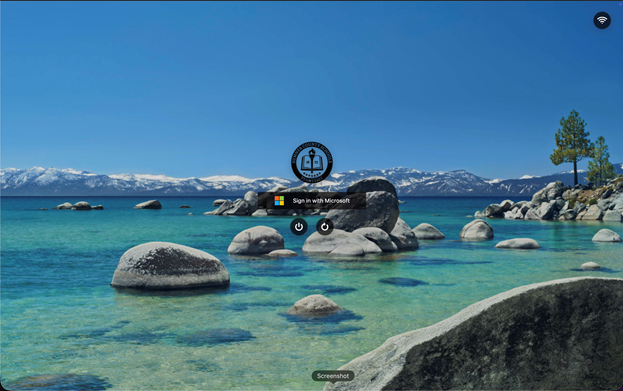
Please enter your [email protected] email and password.
Logging in for the first time takes some time, you may see a blank screen for a couple minutes.
After you log in you should be greeted with the desktop/home screen
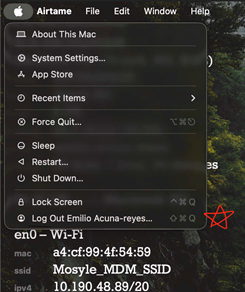
Once you can move the mouse, select the apple icon on the top left and log out.
Here is a faster way to log into your MacBook from now on:
Select sign in with Microsoft again, but this time, on the top right select the small person icon.
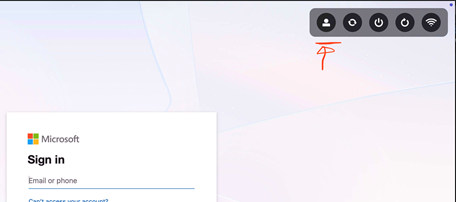
This will display a different log-in screen, one that you might be more familiar with if you have used a personal MacBook.
On this log in screen, you can simply enter your firstname.lastname (no @sumnerschools.org) and then your password.
This is faster than typing out your entire email every time.
Note: You can add a fingerprint to your MacBook as well for faster logging in (System Settings > Touch ID & Password > Add Fingerprint)
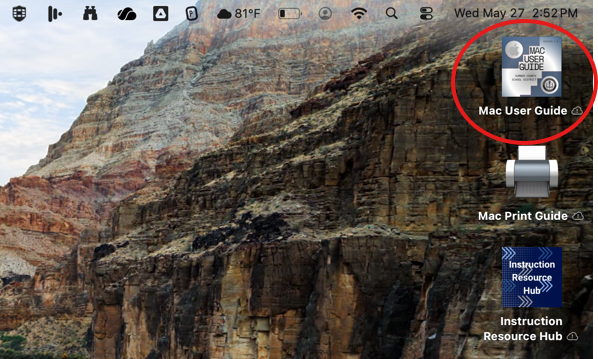
Please know, once you login, there is a MacBook User Guide that has very helpful information if you are new to Macs.
Managed Apple ID Account
Yes, you have an SCS managed Apple Account! This gives you access to another cloud storage (iCloud) if you'd like to utilize it.
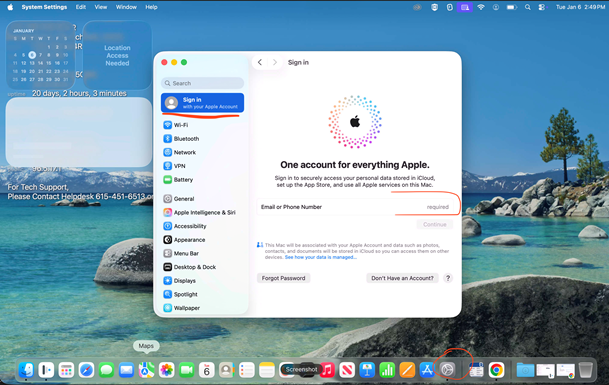
Go to your Settings and click on Sign In at the top left.
Enter your [email protected] email and password (it may ask for your password more than once).
Note: This process takes a second and system settings may freeze for a moment.
Turning on iCloud
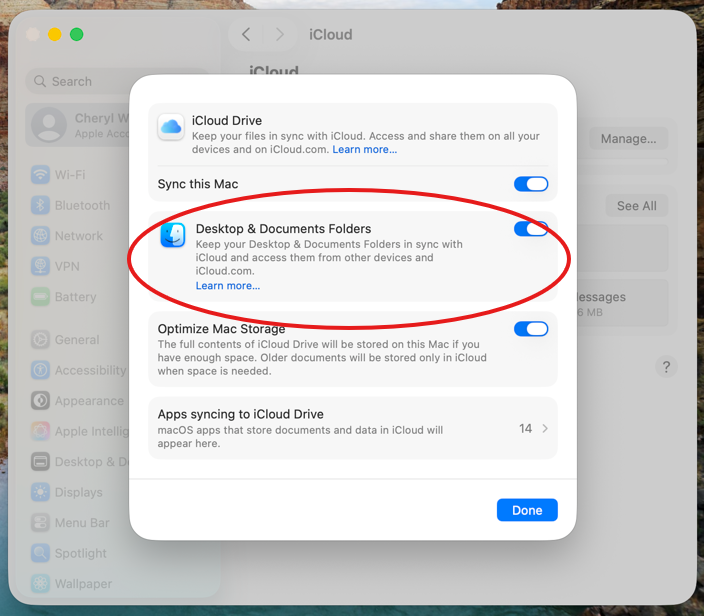
Once you're signed in, you can turn on iCloud. Once you do so, when you login to another Macbook and sign-in, all of your files will populate.
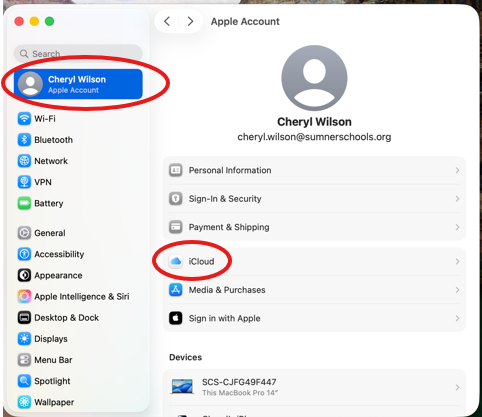
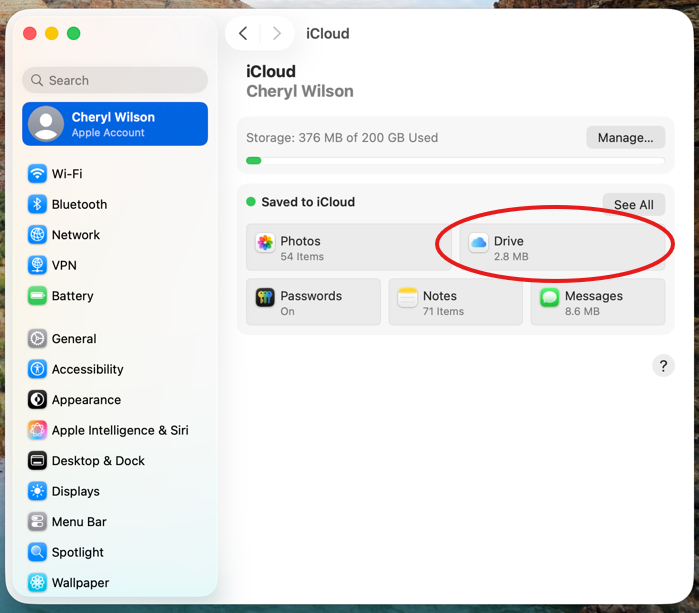
Go Settings > Click on Your Name at the top left > iCloud > Drive > Toggle on Desktop & Documents Folders
NOTE: It takes a few seconds for the button to toggle on, and you may have to toggle it on more than once.
Mosyle Manager app & Adding Printers
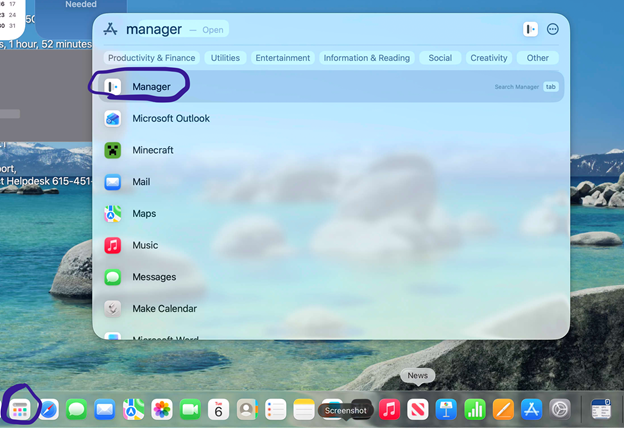
Think of Mosyle Manager as your SCS App Store.
Come here for any application you need that isn't pre-installed to your Macbook.
Click the apps icon in the bottom left of the dock and search for manager, it might be on the dock already.
Once you are in you will notice that it is the same as the iPad version of the app.
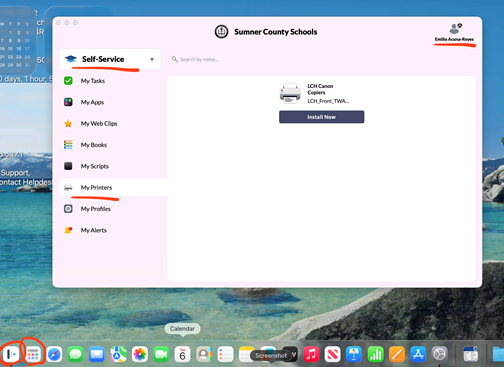
Double check that your name appears in the top right of the app.
To add your printers, select “Self-Service” instead of “Class Manager” from the drop down and go down to “My Printers.”
Go ahead and click “Install now” on any printer groups you see.
Note: It may only show one printer icon, but it will install ALL or MOST Canon copier printers for your school, not just the one listed or named.
Chrome
Before moving on, please change your primary browser to chrome in system settings.
Open system settings on the bottom right of the dock, and search “default,” it should show an option to “change default web browser.”
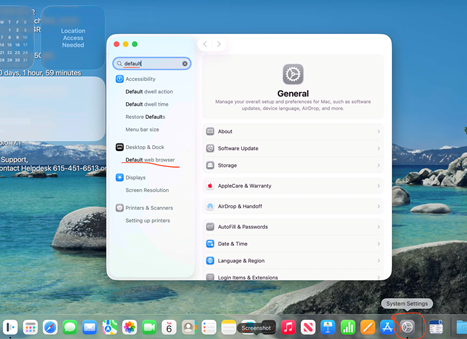
Once you select that option, scroll up a little and you should see an option to change your default web browser.
Please change it to Chrome.
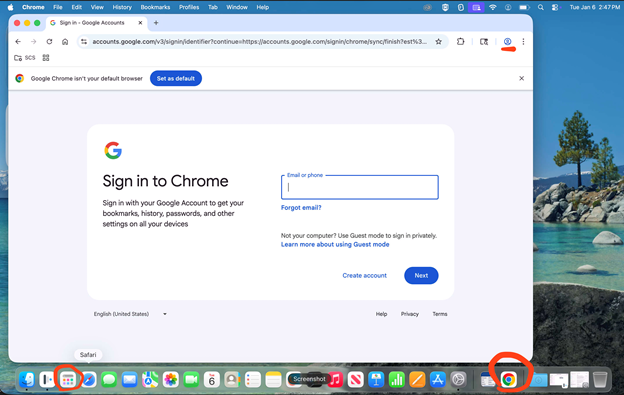
Now go back to the app’s icon and search chrome (it may already be on your dock bar).
Sign in to chrome using your [email protected] account.
OneDrive
If you used a Dell/Lenovo computer in the past, any files saved to the file explorer (not shortcuts or apps) were automatically backed up to your OneDrive cloud storage (linked to your SCS email).
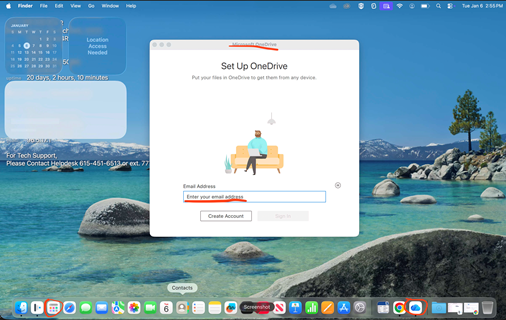
In apps, search for “OneDrive” and open it.
 then,
then,
Sign in with your [email protected] account.
Follow the prompt until it asks you to “select a location for OneDrive.”
A Finder menu will open, then click on “Choose this location to put OneDrive.”
After that you may click NEXT multiple times, ignore the message to download the mobile app, and open OneDrive.
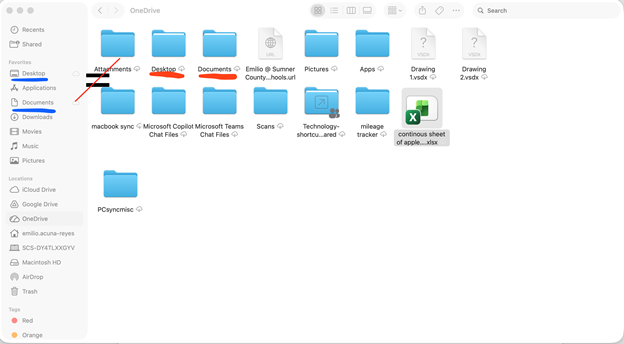
It will then show a finder window showing your OneDrive folders and files.
You will see folders named “Documents” and “Desktop,” please note that this is a backup of the folders with the same name that were on your Dell laptop.
On the left-hand side of finder, you will also see two locations named “documents” and “desktop,” these folders are NOT where your backup files are. These folders reside in the internal storage of the MacBook itself and do NOT back up automatically. However, backup of these folders to iCloud automatically is possible in iCloud settings. This is possible with your @sumnerschools.org iCloud account that you set up earlier in these instructions.