

Secure Print for Windows

Last updated: Apr 29, 2026
1023
views

Secure Print Setup on Windows
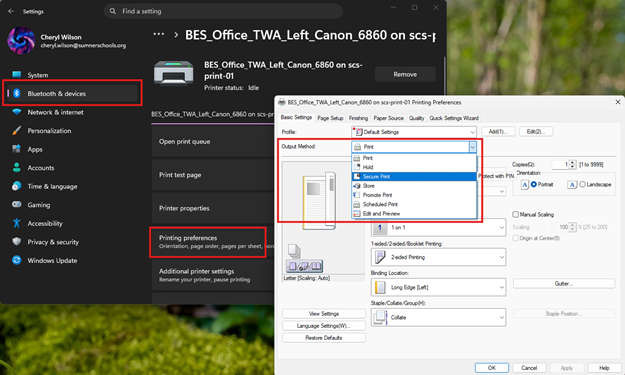
Windows Start > Settings > Bluetooth & Devices > Printers & Scanners
Click on the printer > Printer Preferences
Output Method > Select Secure Print > answer YES:
Have the user enter in a 4-digit code, Click OK:
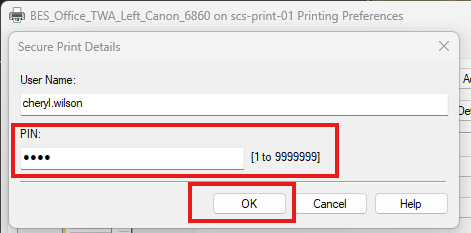
Click Apply (it should gray out once applied)
*Don’t forget to complete a test print. 😊
Printing With Secure Print
Once you have sent your document to the printer, you can follow the steps below
Press Print on the Canon screen
You should see your document listed
Select your document by tapping it (should highlight)
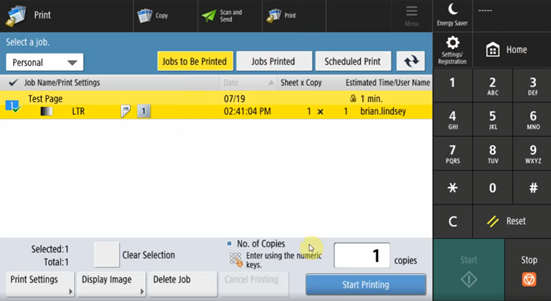
Press Start Printing > You should then be prompted to enter your Secure Print code > OK
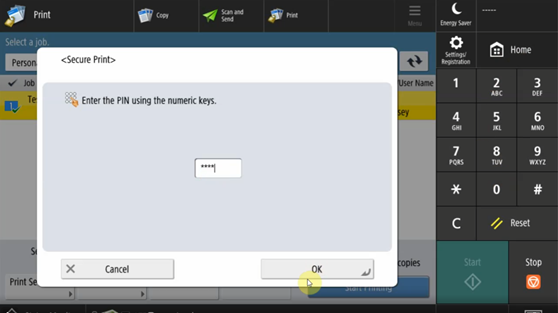
Click Here for a video that shows all the steps above in action!

